

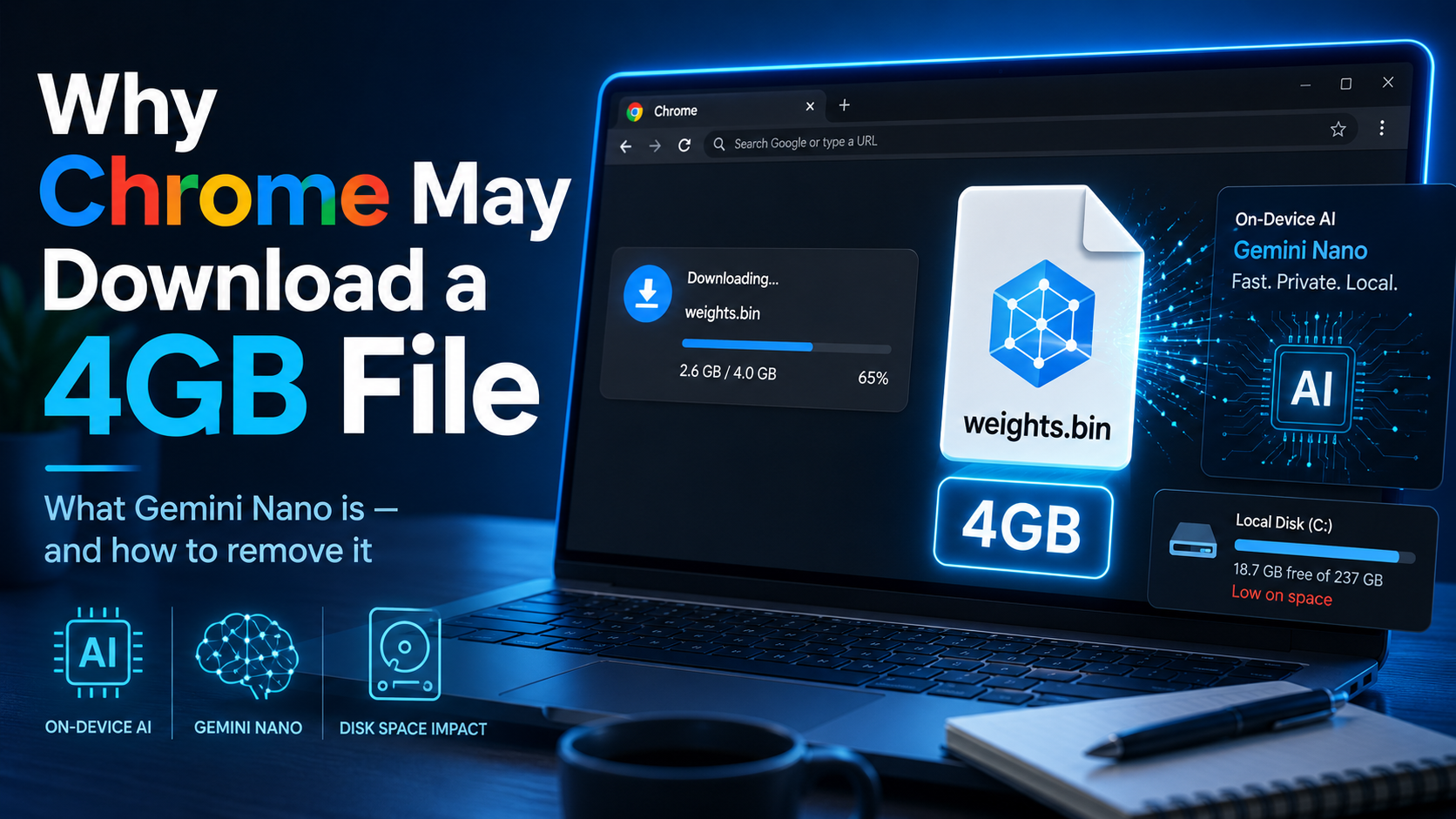
Why Chrome May Download a 4GB Gemini Nano File to Your PC — and How to Remove It
Google Chrome has become much more than a simple web browser. For millions of users in the United States and around the world, it is the default gateway to search, email, online banking, productivity tools, entertainment, and now artificial intelligence. As Google continues to integrate AI deeper into its products, Chrome is quietly becoming one of the company’s most important platforms for local, on-device AI features.
Recently, some Chrome users noticed something unexpected on their PCs: a large file, roughly 4GB in size, stored inside Chrome’s user data folders. The file is called weights.bin, and while its size may look alarming at first, it is not malware, spyware, or a random system error. It is connected to Gemini Nano, Google’s on-device large language model designed to run certain AI tasks directly on a user’s computer.
The discovery has raised an important question for everyday users: why is Chrome downloading such a large file, what does it actually do, and how can it be removed if someone does not want it taking up disk space?
What Is the 4GB Chrome File?
The file in question is commonly named weights.bin. It is stored deep inside the Chrome user data directory, often under a folder related to the on-device AI model. On Windows PCs, users may find it in a path similar to:
C:\Users\[YourName]\AppData\Local\Google\Chrome\User Data\OptGuideOnDeviceModel\
The exact folder name may vary depending on the Chrome version, the model version, and the system configuration. In some cases, users may see a dated model folder followed by the large weights.bin file.
The file is large because it contains the model weights for Gemini Nano. In simple terms, model weights are the numerical values that help an AI model understand patterns, predict text, and generate responses. These weights are essential for the model to function. Without them, the browser would not be able to run that local AI system.
For users who are not familiar with AI terminology, the easiest way to understand it is this: the file is part of the “brain” of the local AI model. It helps Chrome process certain artificial intelligence tasks without needing to send every request to Google’s cloud servers.
Why Is Google Adding Gemini Nano to Chrome?
Google is pushing Chrome toward a future where AI features can run directly on personal devices. Traditionally, large language models like Gemini, ChatGPT, Claude, and others rely heavily on cloud computing. A user sends a request to a remote server, the model processes it there, and the answer returns through the internet.
That system is powerful, but it has several limitations. It requires an internet connection, it can introduce delays, and it may raise privacy concerns because user data must travel between the device and the cloud.
On-device AI changes that model. Instead of depending only on remote servers, a smaller AI model can run locally on a laptop or desktop computer. This can make some features faster, more private, and available even when the user is offline or has a weak connection.
Gemini Nano is Google’s lightweight AI model built for this kind of local processing. It has already appeared in Google’s Pixel devices, where it powers certain AI features without needing full cloud processing. Bringing Gemini Nano into Chrome is a logical next step because Chrome is used by a massive global audience across Windows, macOS, Linux, and ChromeOS.
Why the File Size Matters
A 4GB file may not sound extreme to users with modern PCs that have 1TB or 2TB of storage. However, for users with older laptops, budget devices, or smaller SSDs, 4GB can be significant.
Many people already struggle with limited disk space because of system updates, large apps, games, photos, videos, downloads, and temporary files. When Chrome quietly stores an additional multi-gigabyte file, users may feel that their device storage is being consumed without clear notice.
This is where most of the criticism comes from. The file itself appears to be harmless, but some users are concerned that such a large AI model can be downloaded without obvious permission or a clear warning. For people who carefully manage storage space, transparency matters.
There is also another issue: simply deleting the file may not solve the problem. If the on-device AI feature remains enabled, Chrome may download the model again. That behavior is common for software components that are considered necessary for a feature, but it can be frustrating for users who do not understand why the file keeps returning.
Is the Chrome weights.bin File Dangerous?
Based on the information available, the weights.bin file connected to Gemini Nano is not dangerous. It is not known to be malware, and it is not a sign that a hacker has accessed the computer. It is a Google Chrome-related AI model file.
However, users should still be careful when reviewing system folders. A file named weights.bin in a Chrome AI model directory is different from a suspicious file in an unknown folder. If a user finds similarly named files in unrelated locations, they should use antivirus scanning or trusted security tools to confirm that nothing unusual is happening.
For most Chrome users, the file is simply part of Google’s move toward local AI features.
How to Check If Chrome Downloaded the File
Users can check whether Chrome’s on-device AI feature is enabled by opening Chrome and going to:
Settings → System → On-device AI
If the On-device AI option is enabled, there is a good chance the Gemini Nano model file has already been downloaded or will be downloaded soon.
To search for the file manually on Windows, users can open File Explorer and search for:
weights.bin
Because the file is stored inside hidden system folders, the search may take some time. Users may also need to enable hidden items in File Explorer to view the AppData folder.
A common Windows path may look similar to:
C:\Users\[YourName]\AppData\Local\Google\Chrome\User Data\OptGuideOnDeviceModel\
Inside that folder, the weights.bin file may appear with a size close to 4GB.
How to Remove the 4GB Chrome AI File
Removing the file requires more than simply deleting it. If Chrome’s on-device AI feature is still active, the browser may download the model again later.
To remove it more permanently, users should follow these steps:
First, open Chrome and go to Settings. Then select System and locate the On-device AI setting. Turn that option off. After disabling the feature, users can delete the weights.bin file from the Chrome user data folder.
This should prevent Chrome from downloading the same AI model again, unless the user later re-enables on-device AI or Google changes how the feature is managed in future updates.
Users who are unsure about deleting files manually should avoid removing random Chrome folders. It is safer to disable the feature first and then remove only the specific file connected to the AI model.
Should You Delete It?
For most users, there is no urgent need to delete the Gemini Nano file. If the computer has plenty of available storage, the file can remain in place. It may allow Chrome to run future AI features faster and with more privacy than cloud-only tools.
However, users with limited storage may prefer to disable on-device AI and remove the file. A 4GB file can be meaningful on smaller drives, especially if the system is already running low on space.
The decision depends on how much a user values Chrome’s upcoming AI features compared with available disk space. People interested in testing local AI features may want to keep it. People who do not use AI tools in Chrome may prefer to remove it.
What This Means for the Future of AI in Browsers
The quiet appearance of a large Gemini Nano file inside Chrome shows where the browser industry is heading. AI is no longer limited to standalone chatbots or cloud-based tools. It is becoming part of the browser itself.
In the future, Chrome may use on-device AI to help summarize pages, improve writing, analyze forms, assist with browsing tasks, organize information, and personalize web experiences. Running some of these features locally could reduce latency and improve privacy, but it also creates new challenges around storage, consent, transparency, and user control.
Google is not alone in this direction. Browser makers and operating system companies are all looking for ways to bring AI closer to the user’s device. This trend will likely continue as computers become more powerful and smaller AI models become more efficient.
Final Thoughts
The 4GB weights.bin file in Chrome may look suspicious at first, but it is most likely part of Google’s Gemini Nano on-device AI system. It is not something most users need to panic about. Still, the concern around silent downloads is understandable. A file of that size should be easier for users to identify, manage, and remove.
For users who want Chrome’s local AI features, keeping the file makes sense. For users who need disk space or do not want on-device AI enabled, the best solution is to turn off On-device AI in Chrome settings and then delete the file manually.
As AI becomes a standard part of browsers, users will need more visibility into what is being installed on their devices. Chrome’s Gemini Nano file is not dangerous, but it is a clear reminder that the next era of web browsing will require stronger transparency, better controls, and clearer communication from technology companies.




Comments
No comments yet. Be the first to share your thoughts!
Leave a Comment