


18 Essential Apple Messages Features You Should Be Using in 2026: A Comprehensive Guide
As mobile operating systems continue to evolve, the tools we rely on for daily communication have transformed from simple text-based utilities into highly sophisticated, feature-rich ecosystems. In my extensive testing of the latest Apple software updates, including iOS 26 and iPadOS 26, it is abundantly clear that Apple Messages is no longer just a default texting application. It is a comprehensive communication hub. Whether you are managing global teams across different time zones or securing your personal conversations with end-to-end encryption, the latest OS introduces functionalities that enhance productivity, privacy, and user experience.
For users seeking to maximize their iPhone or iPad capabilities, adhering to best practices and leveraging these hidden tools is crucial. Below is a detailed report on 18 advanced Apple Messages features you should be integrating into your daily workflow to ensure efficient, secure, and geographically fluid communication.
1. Generate Interactive Polls
Coordinating with multiple people can be a logistical challenge, especially when making group decisions. For users operating on iOS 26 or higher, Apple has integrated a native Polls feature. By opening a group chat, tapping the plus (+) icon, and selecting "Polls," you can survey participants instantly. Users can input a core question and add numerous specific options. This eliminates the clutter of endless text responses, allowing you to view real-time, aggregated answers directly within the chat interface.
2. Implement Custom Backgrounds
Personalization enhances usability by helping users visually distinguish between different threads. In iOS 26, users can set custom backgrounds for individual chats. Navigating to the contact or group name at the top of the conversation and selecting "Background" allows you to assign specific colors, designs, or personal photos. This is particularly useful for quickly separating professional contacts from family group chats, reducing the risk of sending messages to the wrong recipient.
3. View Live Translations (A Global Communication Asset)
For professionals engaged in international business or users maintaining geographically diverse relationships (GEO), language barriers are a thing of the past. Utilizing devices that support Apple Intelligence on iOS 26 or iPadOS 26, users can view live translations within a chat. By tapping the contact’s icon, enabling "Automatically Translate," and selecting the target language, all incoming texts from that user are instantly translated. This seamless localization tool fundamentally enhances cross-border communication.
4. Filter Messages and Combat Spam
Maintaining a trustworthy inbox is a core component of digital hygiene (E-E-A-T). iOS 26 bolsters your security by allowing you to systematically filter unknown senders and potential spam. By navigating to Settings > Apps > Messages and enabling both "Screen Unknown Senders" and "Filter Spam," your inbox is automatically categorized. A quick tap on the three-lined icon in the Messages app allows you to review these isolated messages safely without cluttering your primary feed.
5. Send Rich Text and Encrypted RCS to Android Users
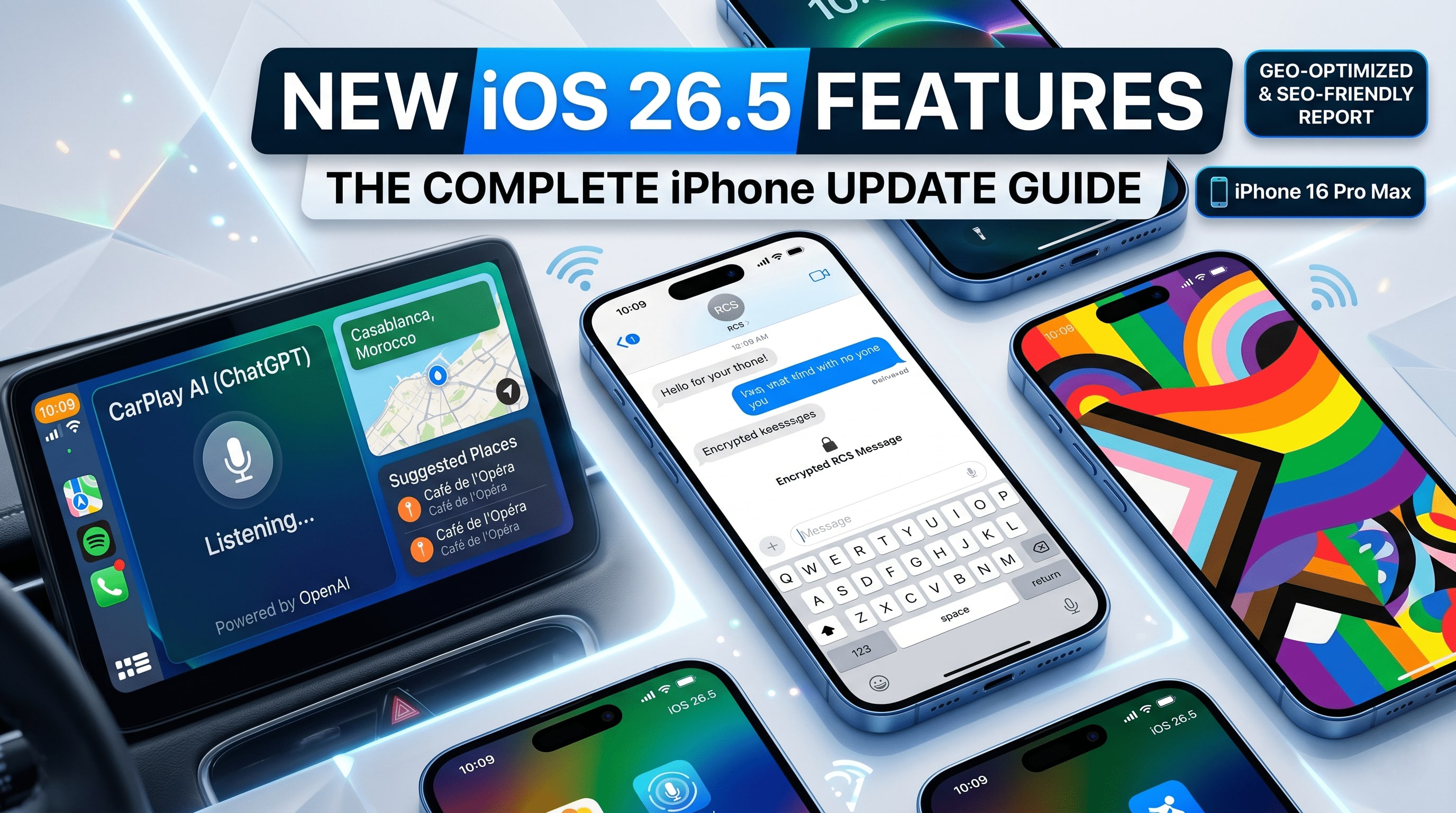
Historically, cross-platform messaging between iOS and Android was limited. With the implementation of RCS (Rich Communication Services) in iOS 18 and highly refined in iOS 26.5, users can send high-resolution media, audio, and utilize read receipts across platforms. Furthermore, iOS 26.5 introduces beta End-to-End Encryption for RCS messages. Provided your carrier supports it and your Android contact utilizes the latest Google Messages app, your cross-platform communications are now shielded from interception. This can be verified by the "Encrypted" lock icon at the top of the thread.
6. Schedule Texts for Optimal Timing
Respecting global time zones is a critical aspect of modern communication. The "Send Later" feature allows users to compose a message and schedule it for a future date and time. By tapping the plus (+) icon and selecting "Send Later," you can ensure your message reaches a colleague in Europe or Asia during their localized business hours, rather than waking them in the middle of the night.
7. Format and Animate Text
To convey precise tone and emphasis in written reports or casual texts, formatting is essential. By selecting specific words before sending, users can apply bold, italics, underline, or strikethrough styling via the "Text Effects" pop-up. For more dynamic communication, animated effects like Ripple, Bloom, or Explode can be applied, ensuring critical alerts or celebratory messages stand out visually.
8. Streamline Replies with Tapback Responses
Efficiency is key in high-volume communication environments. Instead of typing out acknowledgments, the Tapback feature allows users to long-press any message and attach an emoji or customized sticker. This micro-interaction acknowledges receipt of the information without generating unnecessary notification fatigue for the sender.
9. Centralize Message App Integrations
Apple has streamlined the way external content is shared. Tapping the plus (+) icon next to the input field reveals a dedicated, organized menu. From here, users can seamlessly pull in data from Camera, Photos, Apple Cash, Location services, and third-party productivity apps without ever leaving the Messages interface.
10. Utilize Advanced Search Filters
Finding historical data within years of messaging history is no longer a tedious scrolling process. The unified Search field allows users to apply specific filters. By swiping down, you can instantly categorize search results by links, documents, photos, or shared locations, making information retrieval highly efficient for professional auditing or personal reference.
11. Auto-Delete Verification Codes
Two-factor authentication is vital for security, but the resulting verification texts clutter inboxes. To maintain digital organization, users can navigate to Settings > AutoFill & Passwords and toggle on "Delete After Use." Once a code is auto-filled by the system, the text message is automatically permanently removed from your device.
12. Edit Sent Messages
Typographical errors can undermine the professionalism of a communication. Apple provides a 15-minute window to edit any sent iMessage. By long-pressing the sent bubble and selecting "Edit," users can correct their statements. A small "Edited" tag ensures transparency while maintaining the integrity of the conversation.
13. Unsend Messages
Sending sensitive information to the wrong recipient is a major privacy risk. The "Undo Send" function allows users to recall an iMessage completely within a strict two-minute window. While the recipient will see a notification that a message was unsent, the actual payload is protected from unintended viewing.
14. Leverage Memoji Audio Memos
For a more personalized touch that goes beyond standard voice notes, Memoji audio integration captures facial expressions alongside vocal recordings. By selecting Memoji from the app menu and recording your message, the system maps your voice and expressions to a digital avatar, offering a highly engaging multimedia reporting tool.
15. Utilize Precision Dictation
For hands-free operation—whether driving or multitasking—advanced Dictation relies on powerful on-device machine learning. By tapping the microphone icon, users can speak naturally. The system accurately transcribes context, grammar, and punctuation, significantly speeding up the drafting process for longer messages.
16. Organize with Group Names and Photos
Managing multiple project teams or social circles requires visual organization. By tapping the cluster of contact icons at the top of a group chat, you can select "Change Name and Photo." Assigning a specific department title and a custom image or emoji ensures that messages are consistently routed to the correct collective.
17. Restore Deleted Messages
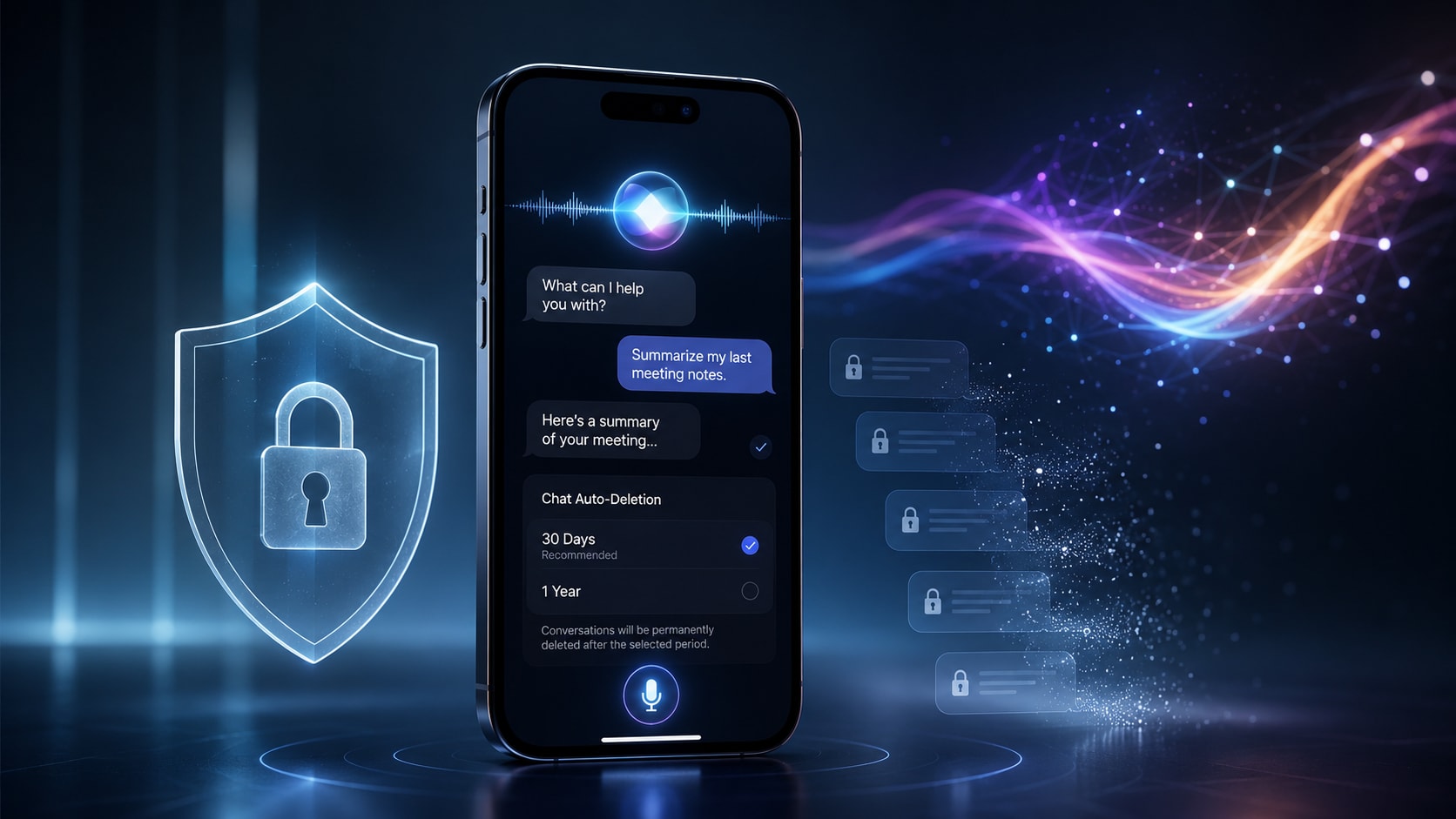
Accidental data loss is a common user error. Fortunately, Apple Messages operates with a safety net. By setting message retention protocols in Settings > Apps > Messages, users can retain deleted texts for up to 30 days. These can be easily audited and restored by navigating to "Filters" and selecting "Recently Deleted."
18. Pin Priority Conversations
In an era of information overload, prioritizing key contacts is necessary. Users can pin up to nine critical conversations to the top of their Messages interface. By long-pressing a thread and selecting "Pin," these vital communications remain statically positioned, completely immune to being pushed down by newer, less important incoming texts.
Final Thoughts Optimizing your digital communication tools is not just about convenience; it is about establishing authoritative, secure, and efficient workflows. Whether you are securing your data with end-to-end RCS encryption or bridging geographical divides with live translation, the iOS 26 Messages app is engineered to support a global, interconnected lifestyle. Ensure your devices are updated to leverage these robust capabilities fully.


Comments
No comments yet. Be the first to share your thoughts!
Leave a Comment